Configure
CsoundQt gives easy access to the most important Csound options and to many specific CsoundQt settings via its Configuration Panel.
To open the configuration panel push the Configure button, choose Edit > Configuration (Ctrl+,), or right-click a widget panel. The dialog has eight tabs, all shown here as of CsoundQt 7.2 (Fusion style, dark theme).
Run
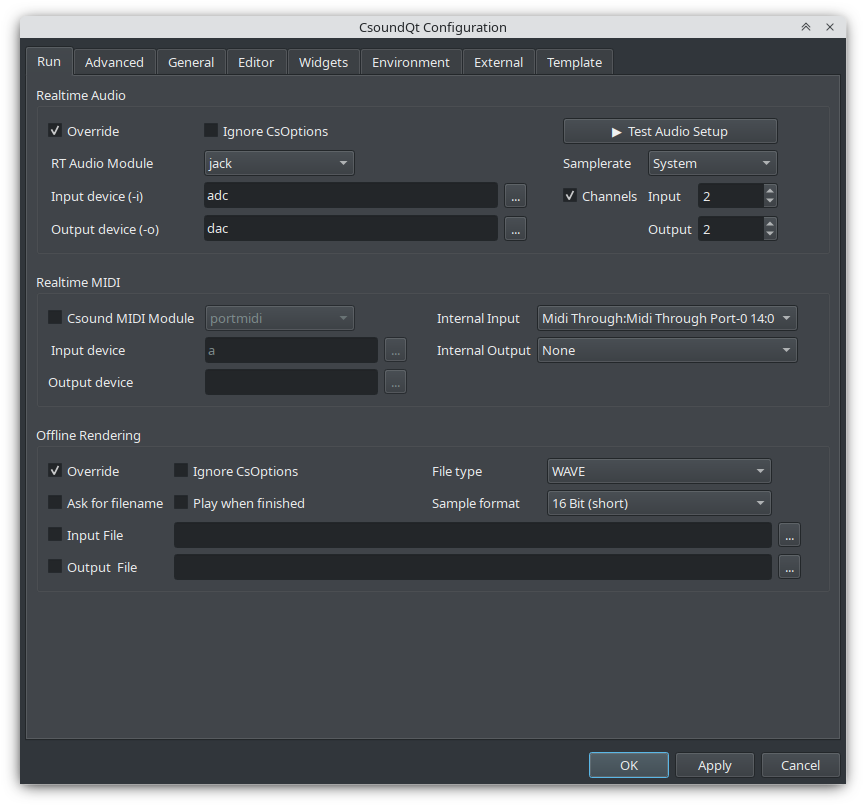
Realtime Audio — options used when you push the Run button (or Control > Run Csound), i.e. realtime performance to the sound card:
- Override — tick to activate the CsoundQt options configured here.
- Ignore CsOptions — ignore the options embedded in the
<CsOptions>section of the csd. For beginners it is recommended to tick this together with Override; experienced users may leave it unchecked to allow extra options (e.g.-m128to reduce Csound's printout). On conflict, the CsoundQt options have priority. - RT Audio Module — very much dependent on your operating system. If you experience crashes or bad realtime performance, try another module. Common choices:
alsaorjackon Linux,coreaudioorportaudioon macOS,portaudioon Windows. - Input device (-i) / Output device (-o) — the devices for realtime input (e.g. a microphone) and output. The usual choice is adc / dac (the system defaults); click
...for a device list, or choose no input if you have no realtime input. Note: the portaudio module usually requires the same number of input and output channels — with stereo output and a mono microphone you may get*** PortAudio: error: -9998: Invalid number of channels; usenchnls_i = 1in that case. - Test Audio Setup — checks the selected audio configuration.
- Samplerate / Channels — samplerate and number of input/output channels.
Realtime MIDI — the MIDI module and devices Csound itself uses (this is not the widget MIDI mapping, see General and Widgets):
- Csound MIDI Module — try another module if you have MIDI problems; select none if you use no MIDI at all. Common choices:
alsaorportmidion Linux,coremidiorportmidion macOS,portmidion Windows. - Input / Output device — usually a (all MIDI devices) for input; use
...for a device list where supported. - Internal Input / Internal Output — the MIDI ports CsoundQt's own widgets listen to (see Widgets MIDI Learn).
Offline Rendering — behavior for Render (Control > Render to file):
- Override / Ignore CsOptions — as above, but for file rendering.
- File type / Sample format — the output file format.
- Input File / Output File — correspond to the
-i/-oflags. There is also Ask for filename and Play when finished.
Advanced
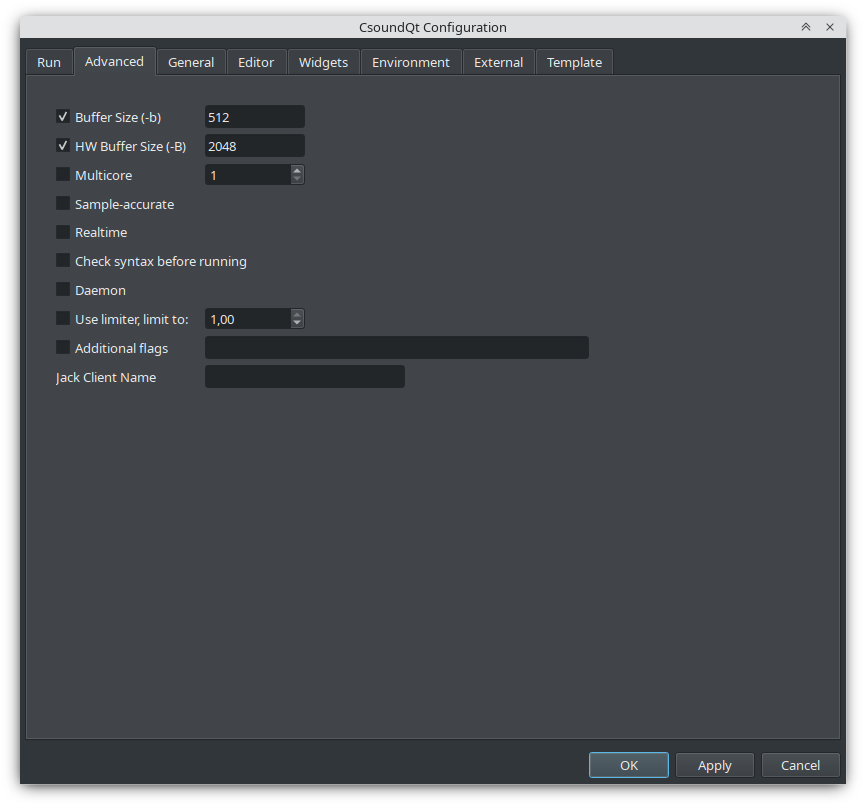
Realtime performance flags (the -b/-B/-j family and extras):
- Buffer Size (-b) — software buffer size. Hints: always use power-of-two values;
ksmpsis usually 1/4 or 1/2 of it (for live input/output use an integer multiple — "full duplex audio"); smaller values (e.g. 128) reduce latency for live performance, larger values (e.g. 1024) suit file playback. Per the manual the defaults are 256 (Linux), 1024 (macOS), 4096 (Windows). - HW Buffer Size (-B) — hardware buffer size; commonly 4× the software buffer size. Its exact role depends on the audio module (matters for coreaudio/jack/alsa, only a latency hint for portaudio, unused for pulse).
- Multicore — corresponds to the
-jflag (parallel processors). Use with care; it does not always improve performance, depending on the csd structure. - Sample-accurate — sample-accurate event timing.
- Realtime — realtime priority scheduling.
- Check syntax before running — syntax check without performing.
- Daemon — run as a daemon process.
- Use limiter — output limiter with adjustable limit.
- Additional flags — any further command-line options. Only use if you know what you are doing!
- Jack Client Name — name for communicating with a Jack audio client (
*means all clients).
General
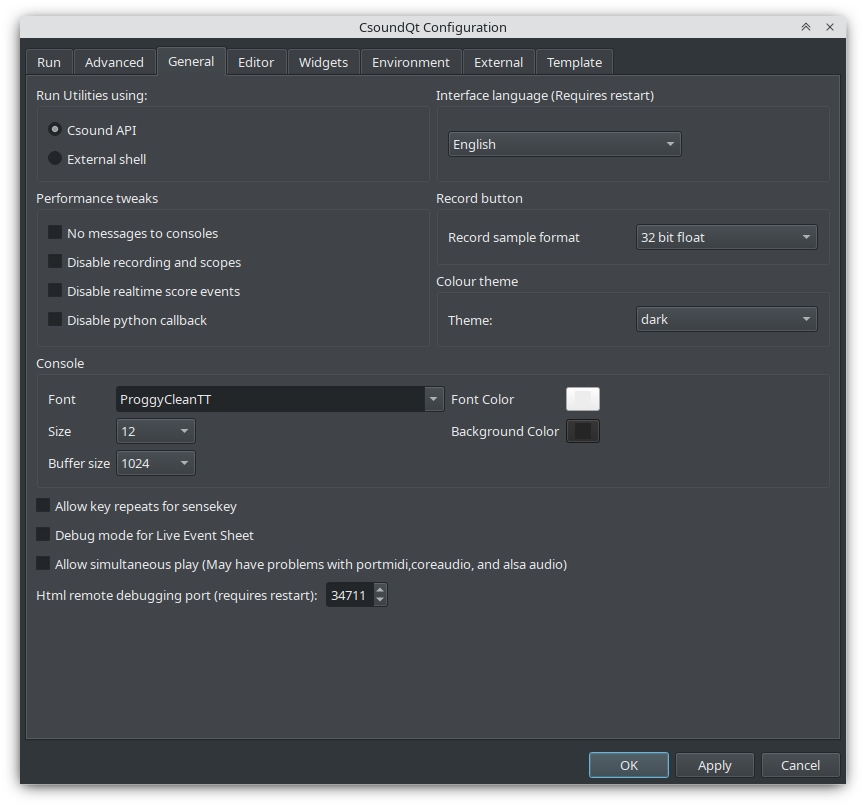
- Run Utilities using — whether the Csound Utilities (e.g.
sndinfo,pvanal) run via the Csound API or an external shell. - Interface language (requires restart).
- Performance tweaks — important for realtime use: No messages to consoles, Disable recording and scopes (CsoundQt's Record facility and the Scope widget), Disable realtime score events (no live events from Button widgets or the Live Event Sheet), Disable python callback.
- Record button — bit depth for the Record facility (32 bit float recommended; it can hold 'clipped' samples for later normalisation).
- Colour theme — light/dark themes; can follow the system and switch at runtime.
- Console — font, font color, size, background color and message buffer size for the Csound output console.
- Allow key repeats for sensekey — whether holding a key repeats it for the sensekey opcode.
- Debug mode for Live Event Sheet.
- Allow simultaneous play — play more than one csd tab at the same time (may have problems with portmidi, coreaudio and alsa audio).
- Html remote debugging port (requires restart).
Widgets
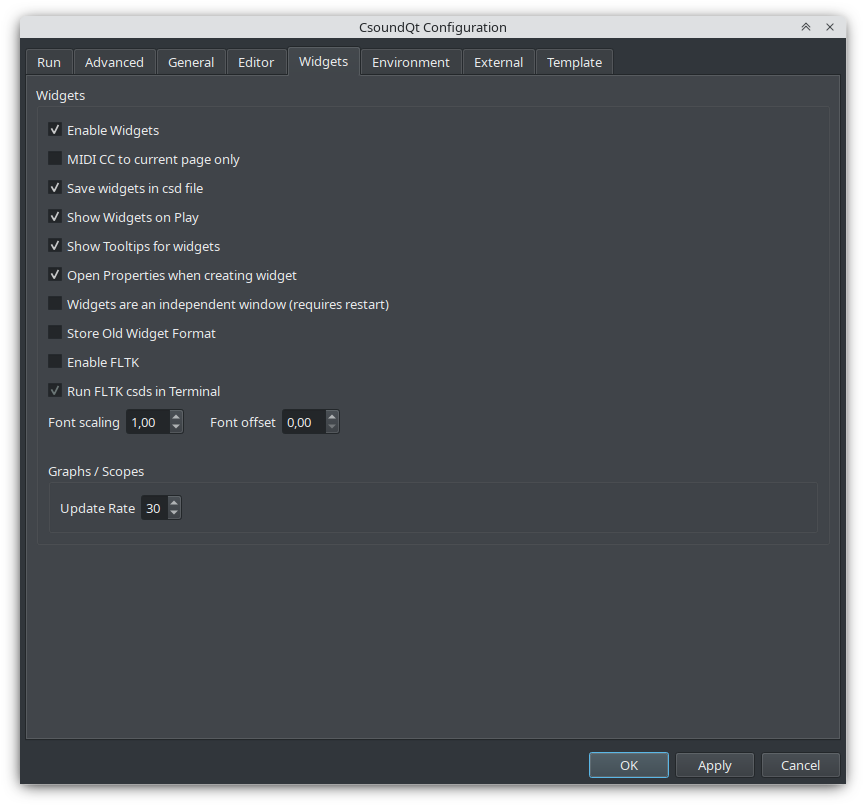
- Enable Widgets — if unchecked, no CsoundQt widgets can be used.
- MIDI CC to current page only — widget MIDI mapping reacts only on the current tab.
- Save widgets in csd file — each csd stores widget and preset sections (hidden in CsoundQt, visible in a text editor). Uncheck only to export a csd without widget data.
- Show Widgets on Play — pop up the widget panel on Run.
- Show Tooltips for widgets — hovering a widget shows its channel name.
- Open Properties when creating widget — enter channel name and properties right away.
- Widgets are an independent window (requires restart) — detach the widget panel from the dock layout.
- Store Old Widget Format — additionally save the legacy Mac Csound widget format.
- Enable FLTK — outdated built-in FLTK widgets; usually off since they can conflict with CsoundQt widgets. Run FLTK csds in Terminal executes such files externally to avoid conflicts.
- Font scaling / Font offset — widget label font adjustments.
- Graphs / Scopes: Update Rate — refresh rate for graph and scope widgets.
Editor
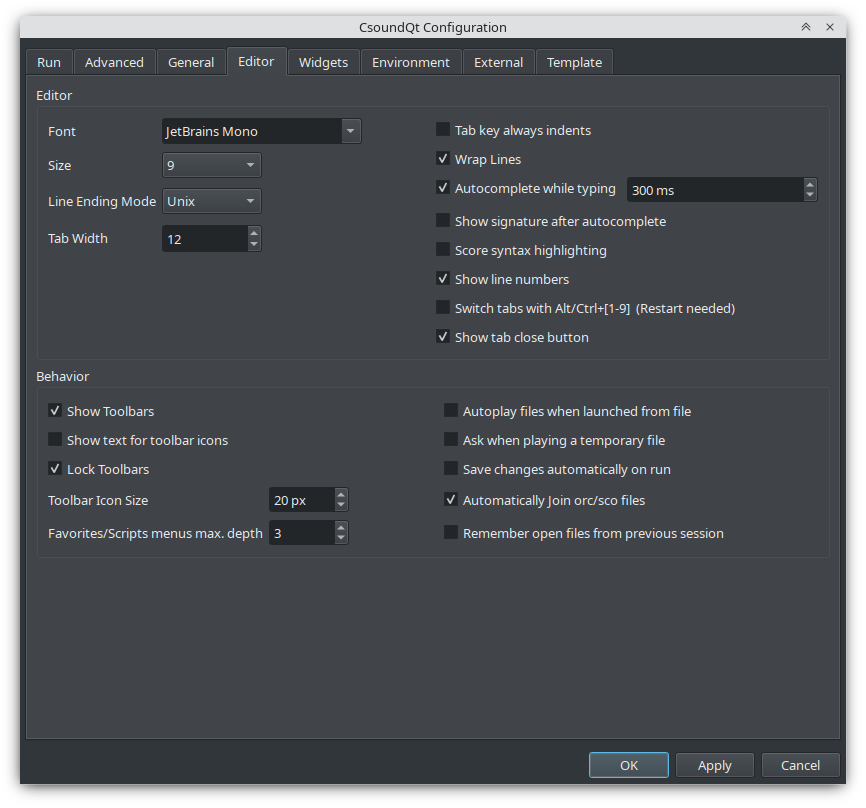
- Font / Size / Line Ending Mode / Tab Width — editor typography.
- Tab key always indents, Wrap Lines, Autocomplete while typing (with delay), Show signature after autocomplete, Score syntax highlighting, Show line numbers, Show tab close button, Switch tabs with Alt/Ctrl+[1-9] (restart needed).
- Behavior: toolbar visibility and locking, toolbar icon size, Favorites/Scripts menu depth, Autoplay files when launched from file, Ask when playing a temporary file, Save changes automatically on run, Automatically Join orc/sco files, Remember open files from previous session.
Environment
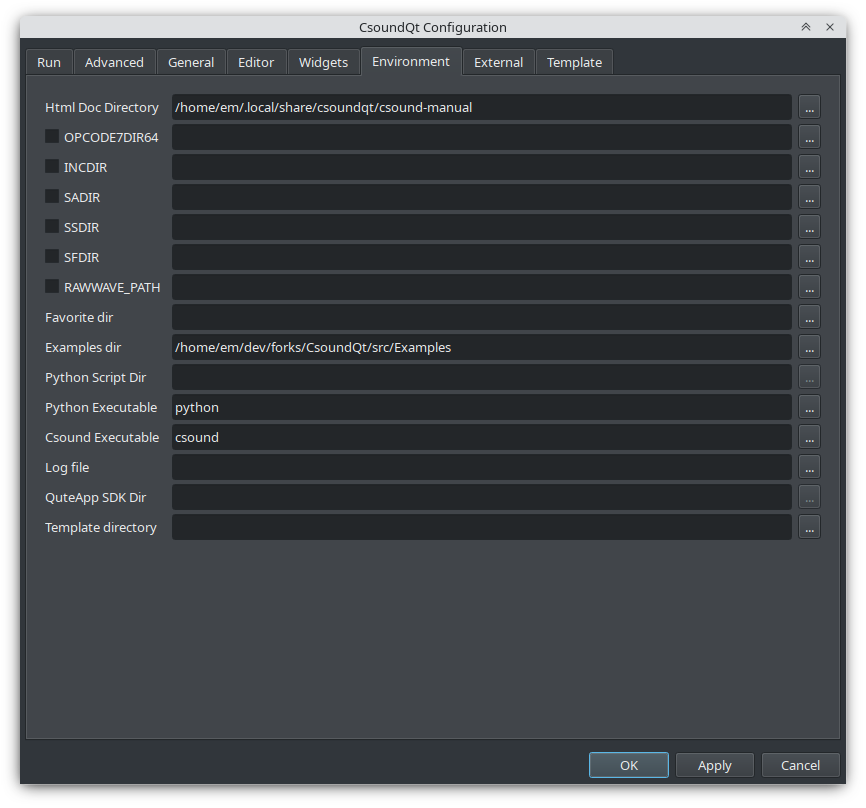
- Html Doc Directory — folder with the Csound Manual. The AppImage/Flatpak bundles ship the manual; for other installs set it here if the Help panel shows "not found!".
- OPCODE7DIR64 — extra opcode/plugin directory.
- INCDIR / SADIR / SSDIR / SFDIR — include, sound-analysis, sample and sound-file directories (
SSDIRlets e.g. diskin find samples by name). - RAWWAVE_PATH — raw wave path.
- Favorite dir — appears as the Favorites menu.
- Examples dir — root of the Examples menu.
- Csound Executable — the
csoundbinary used for Run in Terminal and utilities. - Log file, QuteApp SDK Dir, Template directory.
External Programs
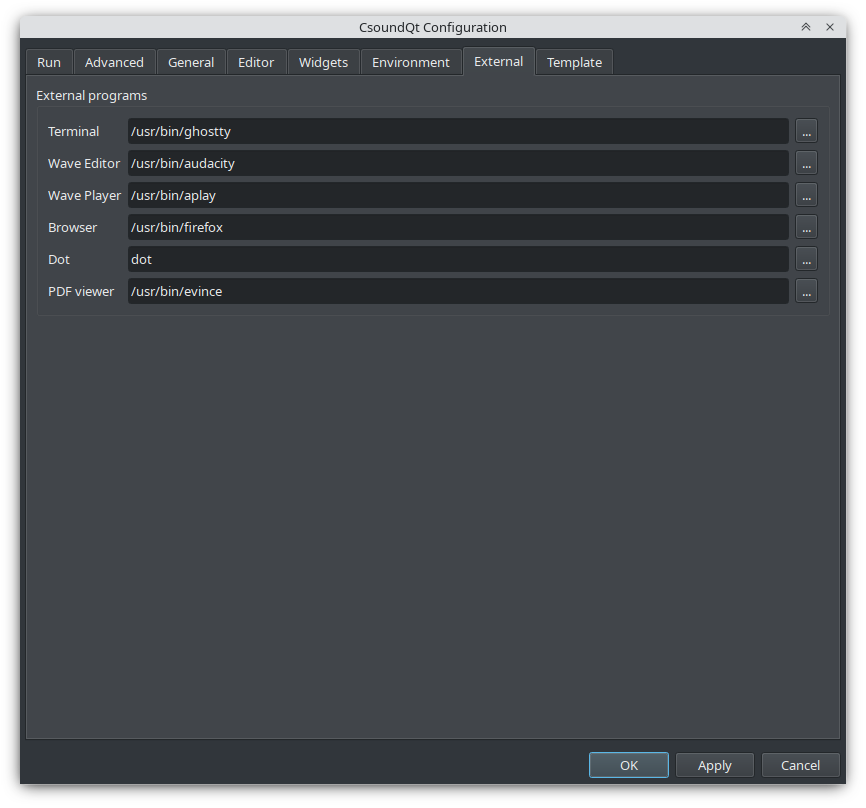
Terminal, Wave Editor, Wave Player, Browser, PDF viewer, and Dot (the graphviz executable used by View > View Code Graph).
Template
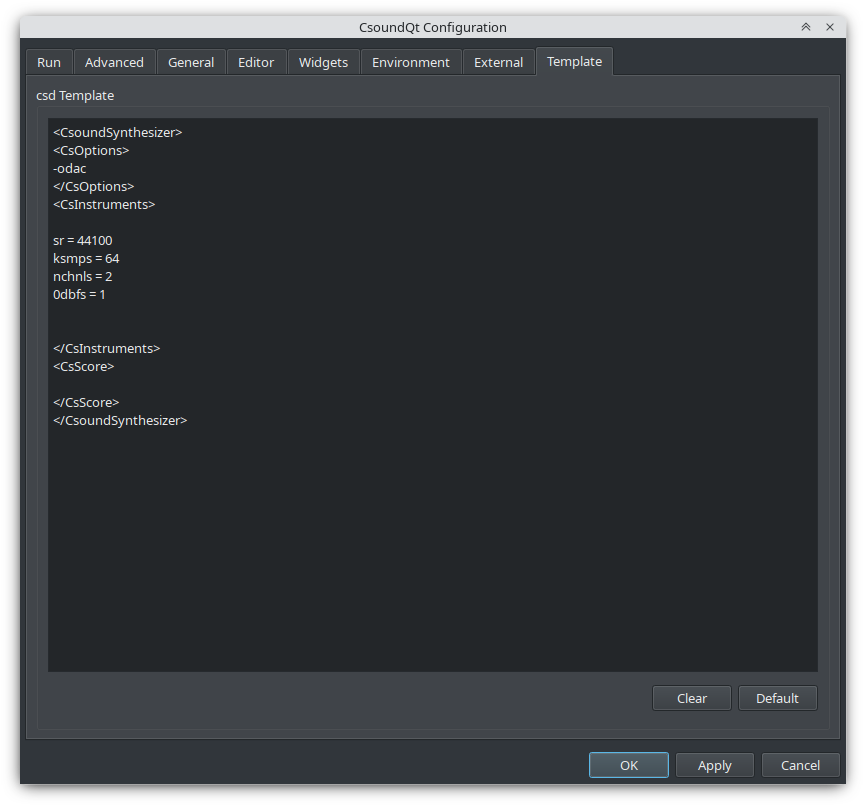
Default template for new csds — a real timesaver. Clear empties it, Default restores the factory template.